Appearance
The AI copilot
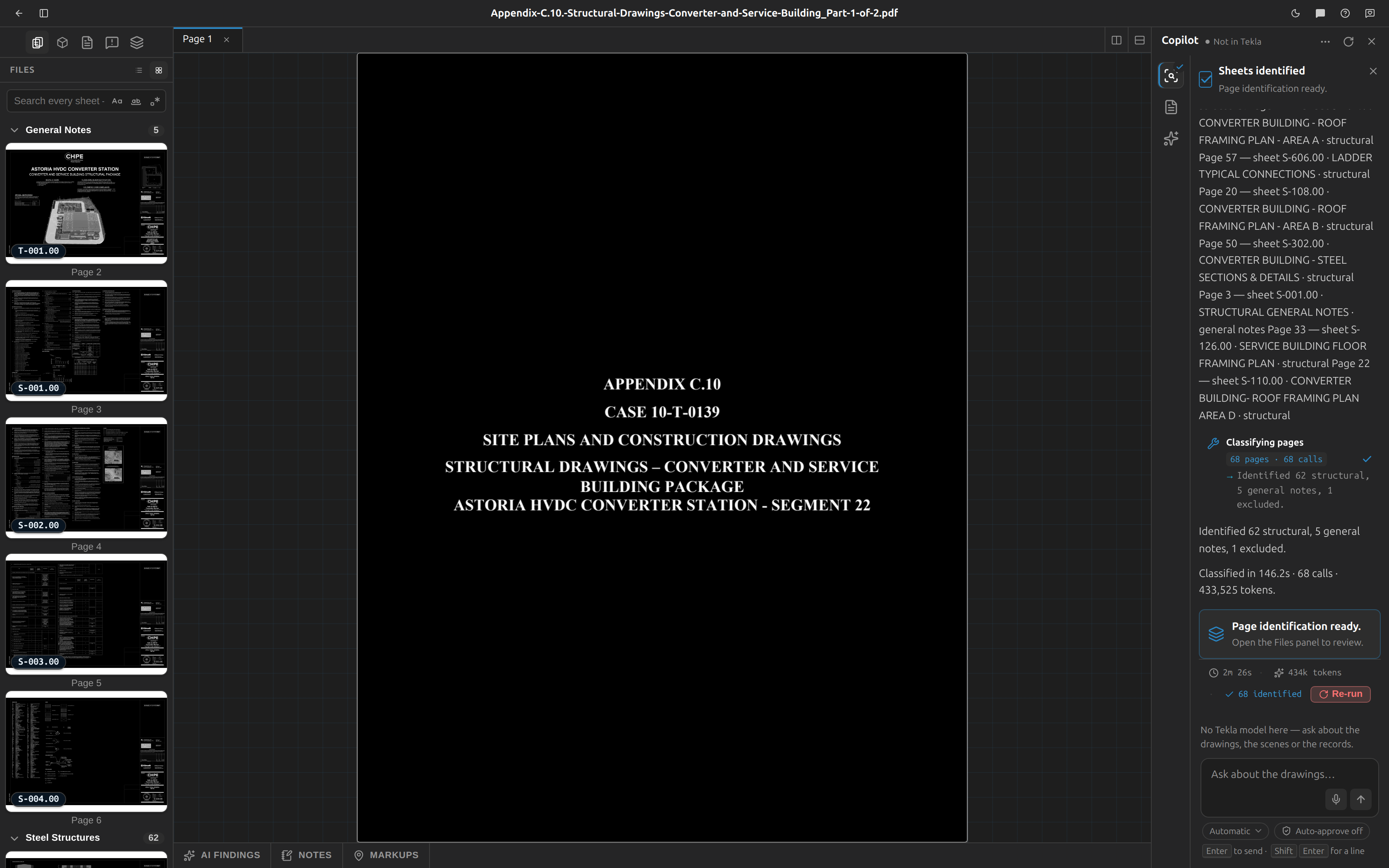
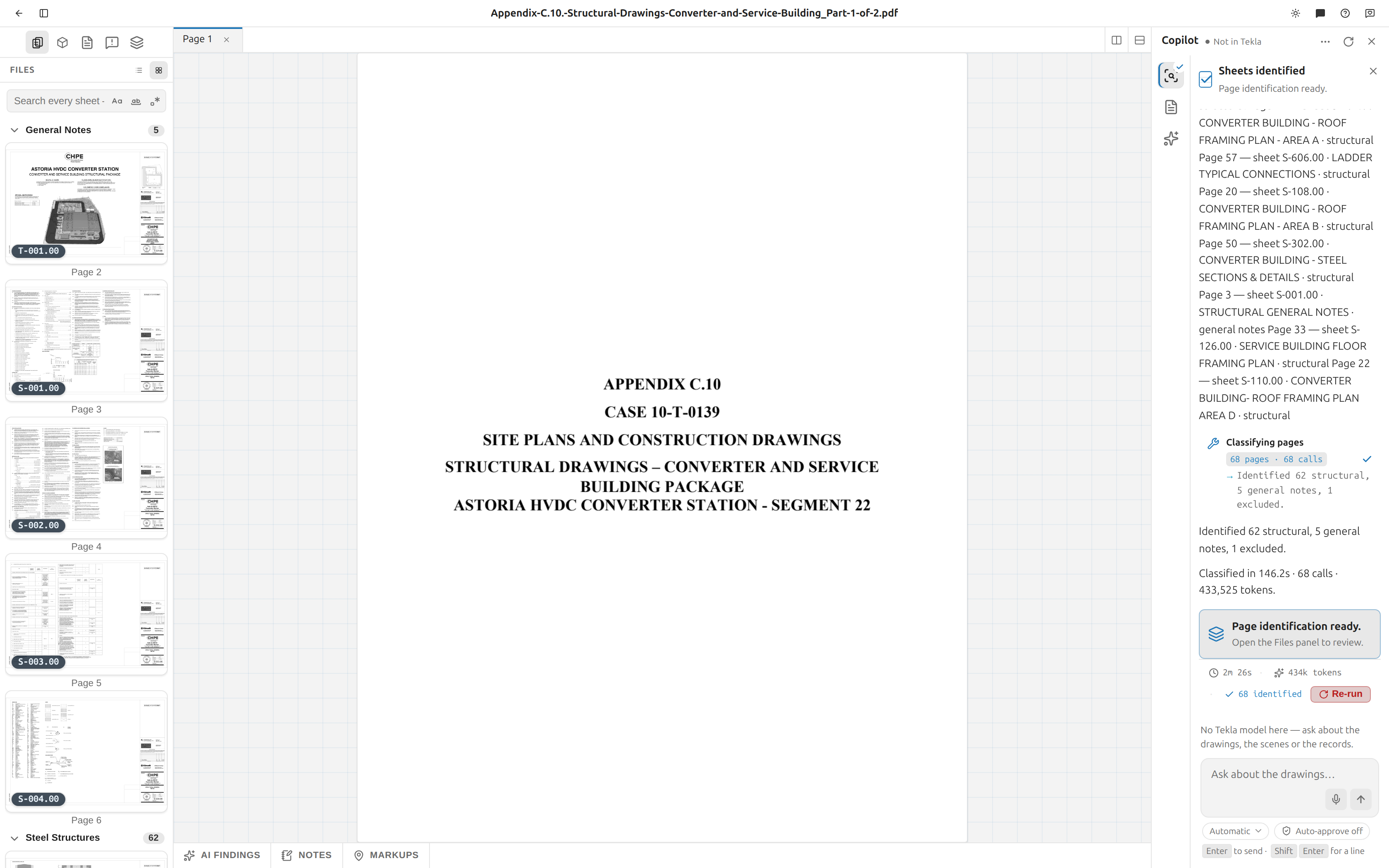
The copilot is the AI that reads your drawing set for you. It lives in a panel down the right-hand side of the workspace: a feed of what has happened, and the Assistant you talk to — it decides what to do, reads what it needs and asks you before it changes anything.
Three fixed stages also run over the set when you upload it, in the background and with no card of their own: Triage sorts the sheets, then Lectora reads the general notes while the callout sweep links the bubbles. Their progress shows as Triage and Lectora at the top right of the workspace, and their results land in the Files panel, the Design spec panel and the Questions and RFIs panel. The callout sweep links every section and detail bubble to the sheet it names, which is work you want done rather than watched. The one thing it can find that needs you — a cut direction it could not get the vision model to check — arrives in the Questions and RFIs panel instead of in a transcript nobody would open. Detection is not among them: every detect step is one you run yourself from a scene, and it reports there rather than here.
Open and close the copilot
| Control | Where | What it does | Shortcut |
|---|---|---|---|
| Speech-bubble button | Top bar | Toggles the panel. Tooltip reads Open copilot when closed, Hide copilot when open. | ⌘/Ctrl + J |
| Close copilot (X) | Panel header | Closes the panel. | ⌘/Ctrl + J |
| Left edge of the panel | Panel | Drag to resize (Resize copilot panel). | — |
The panel remembers whether it was open, so it comes back the way you left it. It shows one thing: your conversation with the Assistant, above the box you type into.
Why the copilot is a panel and not a tab
The copilot is an aside, not a document. You are meant to read Triage's progress while you have a sheet or a scene open in the editor beside it, not switch away from your work to check on it. Everything it writes is live over a WebSocket — there is no refresh anywhere in Fablnx.
Triage — identify the steel sheets
Triage reads every sheet in the uploaded PDF and classifies it, so the Files panel can group the set.
- Upload a drawing set on the project screen. Triage starts automatically — you do not launch it.
- Triage at the top right of the workspace shows its progress: an amber dot while it runs, green when it is done, red if it failed. The Files panel groups the pages when it is done.
Triage sorts pages into these groups, which the Files panel shows in this order: General Notes, Steel Structures, Excluded. The pill on a list row spells the same names in sentence case — General notes, Steel structures — see Files & pages.
Lectora — read the general notes
Lectora reads the general-notes pages and extracts the steel design spec — grades, bolts, welds — into the Design spec panel.
- Lectora starts automatically once Triage has found the general notes, at the same time as the callout sweep.
- Lectora at the top right of the workspace shows a spinner while it reads.
Lectora fills the panel before it finishes
Lectora writes partial results as it goes, so the Design spec panel starts filling in mid-run. In the transcript you will see the note Recorded partial results… when that happens. If the set has no general-notes pages, Lectora is skipped and the Design spec panel says so in a note above the table — the table is still there, empty and editable, so you can state the spec yourself.
Assistant — ask about anything in the job
The Assistant answers what you type in the box at the bottom of the panel. It can reach the whole job: the sheets you uploaded and what has been read off them, the scenes built from them, the project's levels, schedules and RFIs, the AISC shape and grade tables — and, when you are working inside Tekla Structures, the model that is open. It reads by default and asks before it changes anything.
It works in the browser too. Only the questions about the model need the Fablnx app; everything else — the drawings, the scenes, the records, the steel tables — answers from an ordinary browser tab. When there is no model in reach the panel says so above the box and simply leaves that subject out, rather than refusing the question.
The composer is switched off, with the reason in its place, when:
- you are offline — the copilot runs on the server;
- you are in the Fablnx app but it cannot reach Tekla — the top bar says the same thing, and it is worth fixing before you ask;
- it is waiting on you — a change is held for your approval, and the answer it needs is that decision rather than more words.
Press Enter or click the arrow to send; Shift + Enter opens a new line, so a change worth describing in a paragraph can be. The box grows as you type, up to about eight lines, and scrolls after that. What you type has the full width of the panel; the mic, the send arrow and the rest sit on their own row beneath it.
Hand it a file
Drop an image on the panel and it goes with your next question — a photo of steel that does not fit, a screenshot of a detail, a picture of a marked-up print or a sketch off the shop floor. It attaches to the question you are about to ask, so type what you want to know about it and send as usual.
The copilot reads it the way it reads a sheet: what it tells you from a photo it says came from that photo, and where a photo and the drawings disagree, that disagreement is the answer worth having.
Your message appears in the transcript at once, and the panel switches to the Assistant's transcript so you can watch the calls as they are made. What you typed stays in the box if the ask never reached the server, so nothing is lost to a dropped connection.
Stop sits beside the send arrow all the time, greyed with the tip Nothing is running until a chain runs — so the one thing worth pressing during a long call is where your hand already is, rather than at the bottom of a transcript that has scrolled. It stops after the call the model is running now; nothing still queued starts.
Line up the next one while it works
You do not have to wait for an answer to type the next instruction. Send while the copilot is working and your prompt is queued behind the one it is on: the box stays open, the send arrow beside Stop queues it (its tip says so), and so does Enter.
What you queued sits above the box as a quiet line with a pulsing dot while it waits, so there is evidence the words went somewhere without pretending they have been answered. The line goes when the copilot picks them up and they appear in the transcript as an ordinary question of yours.
- The run in front is never cut off. It finishes what it was doing.
- It hears you as soon as it can. A chain part-way through a job takes your words at its next step, the way a colleague hears "actually, skip the roof" before starting the next thing rather than after finishing everything. That is the usual case, and it is why a correction is worth typing the moment you see it going the wrong way.
- Anything it did not get to hear runs next, on its own. A prompt you send while the answer is already being written is answered by a fresh run straight after — in the order you sent them, one at a time.
- Attach a file to a queued prompt as usual; it goes with the prompt it was attached to.
- Stop drops the queue. Pressing Stop ends the run and everything lined up behind it, which is what nothing still queued starts means.
Ask it out loud
The mic beside the arrow dictates. Press it and start talking — the words appear in the box as you say them, phrase by phrase, the way a live caption does. Press it again (the red square) to finish; there is a brief moment while the last phrase lands, and then it is done.
It is never sent for you. What it writes goes in the box and stays there. You read it, fix the word it heard wrong, add the sentence you forgot, and press Enter when you mean to.
- Text is added to whatever is already there, so you can start a sentence by hand and finish it out loud.
- The box is read-only while it is listening — it is being written into, and an edit made mid-sentence would be overwritten by the next phrase. Stop first, then edit.
- A counter runs beside the mic the whole time it is listening, so an open microphone is never a surprise.
- Esc throws it away. Nothing discarded is kept, and the microphone is released on every way out.
It expects English, and it punctuates and capitalises on its own. It is worth reading before you send — a beam mark especially — because a spoken W18X35 is a lot of syllables and it is only as good as the room is quiet.
Where your voice goes
Nowhere. Your speech is transcribed by Fablnx's own server, on its own processor, and then dropped — it is not sent to a speech service, it is not stored, and there is no recording of it anywhere afterwards. The only thing that survives is the text in the box, which is not sent anywhere either until you press Enter.
No microphone? The button says so in the composer. Your browser and the Fablnx app each ask your operating system for the microphone the first time you press it — allow it there, then try again.
Things worth asking
On an empty transcript the panel offers four examples — one for each kind of thing the copilot does, a read first. Clicking one fills the box rather than sending it, so you can change it before it goes. They are there because an empty box asks a question it gives no help answering, and behind it are hundreds of tools nobody has a list of.
Some of what it can reach in the model is worth knowing about, because you would not guess it was there:
| It can | So you can ask |
|---|---|
| Find steel by what it is — type, profile, grade, name, class, phase, assembly prefix, a box in the model, or one of your own saved filters | "Find every W12X22 in phase 2" · "Run my Erection sequence 2 filter" |
| Find steel by how big it is — longer than, heavier than, or between two elevations | "Every W12X22 longer than thirty feet" · "What steel sits between elevation 20 and 34?" |
| Point at what it found — select it, add to or take away from what you have selected, colour it, ghost it translucent, or just move the camera to it | "Select those, and add the columns to what I have selected" · "Colour the held ones purple and leave it up" |
| Read the engineer's analysis model — which analysis models the job holds, which one Tekla is pointed at, the load combinations in it, and the end forces on one member | "What did the engineer solve this girder for under the governing combination?" |
| Run Tekla's own clash check over the model and read out what it found | "Run a clash check" · "What did it find?" |
Read a report property nobody curated a field for — COG_Z, PAINT_AREA, VOLUME_NET — in the names your own reports are already written in | "Read the paint area off every part on level 3" |
| Total a set by profile, grade, mark, cast unit, class or phase | "Total the weight of those, grouped by profile" |
An analysis number arrives in Tekla's unit, not in kips
Tekla does not say what unit its analysis results are in, and the copilot will not guess: it hands you the number and says the unit is unestablished. Newtons, kilonewtons and kips differ by thousands, so check one value against Tekla's own result dialog before you design to it.
A size question is slower than the rest, and worth knowing why: Tekla answers a length or a weight one part at a time, and it takes one call at a time. Naming a type or a profile alongside — "every W12X22 longer than thirty feet" rather than just "everything longer than thirty feet" — keeps that reading off the rest of the building.
Running a clash check asks first, like every other write — not because it changes anything, but because it walks every solid in your model and nothing else can reach Tekla until it finishes.
What the copilot is doing
The line under the box you type in says it, on the left. A dot and a word give the state at a glance, in one of three colours:
| Dot | It says | What is happening |
|---|---|---|
| Green | Ready / Answered | Nothing is running. After an answer it says how long it took, from your question to the reply, with every specialist it sent — Answered in 18m 31s. |
| Blue, pulsing | Cooking…, Brewing…, Tracing… | The copilot is working. The word changes as it goes; beside it is the call or the specialist running now. |
| Red, pulsing | Waiting for you | It asked you a question or wants to change something. Nothing more happens until you answer. |
| Grey | Offline, or why Tekla is not reachable | It cannot be asked anything yet. |
Waiting for you is the one worth separating from working: a chain parked on your answer is not slow, and it will sit there until you answer.
Usage, beside Auto-approve at the right of the status line, opens a small card: how full this conversation's working memory is (Context), and how much of the copilot's 5-hour and Weekly allowance is left, with how long until each resets. It fills in after the copilot's first answer.
A long conversation opens on its latest answers. Load earlier messages at the top of the chat brings the ones before them, a page at a time.
See what it was thinking
While the model works, its thinking shows above the answer — what the model was actually working through on its way there. Click its header to fold it away.
It is worth reading when an answer surprises you, but it is not the answer. It is the model's working, it can contain false starts it then corrected, and nothing in it is a claim the copilot stands behind. The answer is the prose at the end of the transcript — which is why the thinking is a separate row you can collapse.
It is kept. Close the project, come back tomorrow, and the thinking is still there, folded, above the answer it led to — the transcript is the permanent record of what the copilot was asked and what it did, and its working is part of that. It used to be shown live and then lost on reload.
Each thing the copilot does is one row saying what it did, like Listing members. The same step done several times in a row is one row with a count (× 5); click it to see what each call was given and gave back. A playbook it follows reads as its name, like Following Start a job.
So is the rest of what a run puts on screen: the plan a long job shows, the progress notes it writes as it goes, and how long each answer took. Those were shown live and lost on reload too — a returning reader saw the answers with the work that produced them missing.
Some models do not send their reasoning at all. Where none arrives there is no line — Fablnx never reconstructs one from the answer.
See which model answered
Under each question, a small grey line names the AI model answering it — for example claude-opus-5. While the copilot is still waiting on a model, the name ends in ….
The line is kept with the conversation, so it is still there when you come back.
Ask for a change
The copilot can change the model, and it asks you first, every time.
When it wants to make a change, the chain stops and a card appears in the transcript carrying:
- what it would do — the tool by its plain name, and a sentence about what that tool changes;
- exactly what it would use — every value it means to pass, spelled out;
- the risk, where that particular call has a known one;
- there is no undo in Tekla for this.
A box to type in, and two buttons: Approve runs that one call, Don't declines it. The note is optional and goes either way.
Say why, and it is read. On a Don't, what you write is what the copilot is told — so "that member is somebody's correction" stops it far better than a bare no, which it can only guess at. On an Approve, your note is the next thing it reads: "fine, but use A992 from here" lands as a message from you, and it carries on with it.
A note does not make an approval conditional. Approve runs that call as it stands; the note is read afterwards. If something about the call itself is wrong, decline it and say what — that is the one that changes what happens.
Declining is not an error and does not end the chain. The copilot is told you said no — and told why, if you said — and it carries on, either doing something else or telling you what it would have changed.
One approval, one call
Approving a change licenses that call and nothing else. A chain that would change four things asks four times — unless you switch on Auto-approve (below).
If the chain ends before you answer — you stopped it, or it failed — the card says so. Nothing ran.
Let it change things without asking (Auto-approve)
Under the question box is Auto-approve off. Click it and it turns amber and reads Auto-approve on: from then on the copilot's changes run without stopping for you — scene edits, deletes and changes to the Tekla model alike.
- It stays on for this project's copilot until you switch it off, in every window you have open and after a reload.
- Switching it on while a card is waiting approves that card, so the chain carries on.
- Each change still leaves a row, marked Auto-approved — it ran without anybody looking, so the transcript never says you approved something you did not see.
- Questions still wait for you. When the copilot asks which of two heights a drawing meant, only you can answer that.
- Tekla's own checks still apply. A change aimed at a different model than the one open is still refused.
It is the fast mode, not the safe one
With Auto-approve on, a long chain can change a lot before you read what it did. Switch it off before asking for anything you want to check first.
Answering it collapses it to one line naming the tool and what you decided, so the change still waiting on you is the one that stands out rather than the three you have already dealt with. The line is kept: come back tomorrow and the transcript still says what was asked and whether you approved it. "The copilot changed my model" and "the copilot asked and I said yes" are different accounts, and the transcript is where the second one is written down.
Reads are different: looking at the grid, searching for parts, reading a profile. Those run without asking, because they change nothing.
On your phone
You do not have to be at the desk to answer it. Open the same address on a phone and sign in with the same account, and you get the conversation and nothing else — no sheets, no scenes, no editor. What the copilot says on the desktop it says here at the same moment, because both windows are the same account.
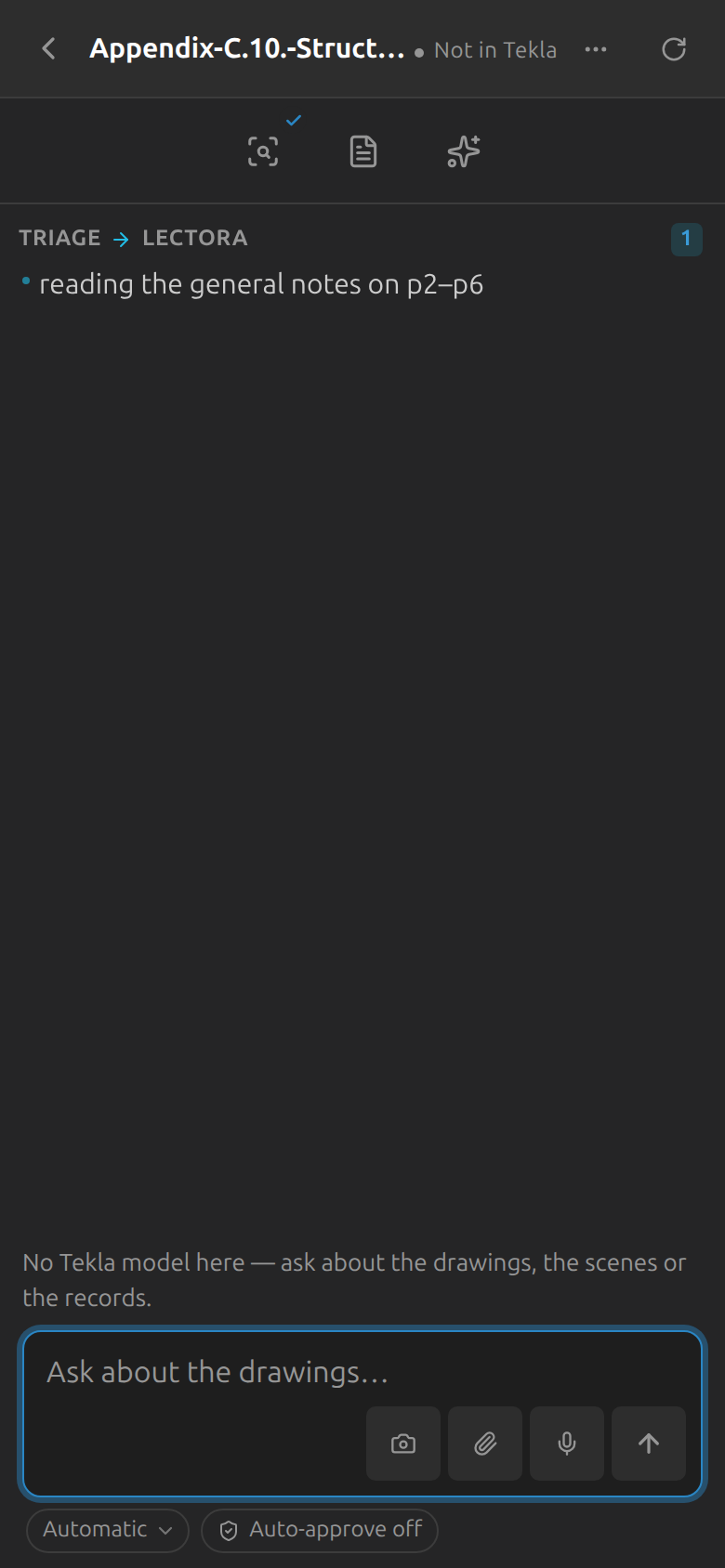
The project list you land on puts whatever is waiting on you at the top — a question the copilot has stopped on, or a change it wants to make. That is the reason to open Fablnx on a phone at all, so it is the first thing on the screen.
| On a phone you can | |
|---|---|
| Answer a question | Pick an option or type your own, exactly as at the desk. The chain carries on. |
| Read everything | The transcript, the tool rows, what it looked at, the meter. |
| Send a photo | The camera button beside the paperclip. Photograph the connection that does not fit and ask about it where you are standing. |
| Ask anything | The same questions about drawings, scenes and records that a browser tab answers. |
A change to the model is shown but not approved from the phone. You see the tool, every value it means to use, and a line saying it is approved at the desk. That is deliberate: Tekla and SDS2 have no undo, and saying yes to a change to the building while the building is not in front of you is a different thing from answering a question.
Enter makes a new line here
On a phone there is no Shift to hold, so it is the other way round from the desktop: Enter starts a new line and the arrow sends.
It knows what you are looking at
Ask about "this sheet" and it means the one in front of you. The open scene, the sheet, what you have selected and which panel is showing all travel with the question, so "how many columns are there" is answered about the plan you are reading rather than about the whole job.
It is what was on screen when you pressed send, not a live view. A chain runs for a minute and people move on, so the copilot knows it is describing where you were — and says so rather than claiming to be watching.
If a chain was started by an upload rather than typed by you, there is no screen behind it, and the copilot asks which sheet you mean instead of assuming.
It can move you to what it is talking about
Three things it can do to your window. None of them changes the building — they change what you are looking at, so none of them asks for approval:
| It can | What happens |
|---|---|
| Open a scene | The sheet opens and comes to the front. Ask for it on the other side and the editor splits, so you can see two at once |
| Open a sheet | The same, by page number |
| Show you | Pans and zooms to the members it means, and selects them — the difference between it claiming it changed four columns and showing you which four |
| Turn layers on and off | So what it is talking about is what is drawn — the beams alone, the offsets it just named, or every layer cleared at once |
| Put a line on the sheet | One short note where you are looking, for something worth seeing on the drawing rather than read in the transcript |
Every window you have open is offered the call and exactly one is granted it, so two windows never both jump.
Why it is not "click that button for me"
The copilot changes your project, and the screen follows on its own — every panel in Fablnx is live, so a grade written onto forty members appears in the inspector without anything being told to look again. Only the few things the server genuinely cannot do — which sheet is open, where the view is pointed — are verbs about your window. That keeps a handful of them against hundreds of tools, instead of a second copy of the app.
It can open, fill and design a connection — and never adds one
Ask the copilot to set up a connection, or to work through every group, and it opens the connection designer for each group and puts the values in the boxes. The design runs as the values land, exactly as when you type them, and the copilot tells you the verdict and the governing check.
It never presses Add. Nothing is saved on a group until you add it, or approve the copilot doing so.
A blue bar above the form says what it filled, and what was there before:
The copilot filled 6 fields. The checks are for these values; nothing is saved until you settle or add it.
boltDia0.875→ 0.75 ·rows5→ 4 ·plateT0.375→ 0.5 …
Put them back undoes the lot. Editing a field yourself takes it out of the list, so the undo can never overwrite something you have just typed.
It asks no permission to fill or design a form, because nothing has been written anywhere — and being asked twice, once at a dialog describing the change and once at the form showing it, is a review nobody does properly the second time.
It cannot invent a value
Every field is checked against the same catalogue the dropdowns are built from. Ask for a 7/8" bolt and it goes in; ask for one that is not a size, and the copilot is told the sizes that exist and corrects itself. The arrangement is checked against the family too — a shear end plate takes one, a double clip angle takes four.
It shows you the plan for a long job
Tracing a sheet is eleven steps and dozens of calls. For a job like that the copilot puts the steps at the top of the transcript and marks the one it is on — done above, current in bold, still to come below.
It is there so a two-minute run is not a spinner: you can see what the work is for, how much is left, and therefore whether stopping it costs you one step or ten. A job of a single call gets no plan — a promise about what is coming is noise in front of a one-line answer.
When the copilot hands sheets to helpers working side by side, each helper's card carries its own plan, so you can see how far each sheet has got while the main plan waits for them.
At the end of a long job the copilot takes one picture of the whole model in Tekla and checks it against what it built, so it does not take a push's word for it.
It can ask you something
When the answer is not in the drawings, the model or the notes — two readings of an ambiguous callout, a grade the sheet never states, which of three grids you meant — the copilot asks instead of guessing, and waits.
The question appears in the transcript with the answers it can act on. Pick one, or type your own. I would rather not say is a real answer: the chain is told and carries on without it, rather than sitting on you.
The header says Waiting for you while it does, so a parked chain never looks like a slow one. If nobody answers for fifteen minutes it gives up and says so.
A question is never how it gets permission
Answering a question licenses nothing. Every change to the building is still held on its own row with its arguments shown, whatever was asked first — so "shall I change these forty members?" is not a question the copilot is allowed to substitute for the approval, and yes to it changes nothing on its own.
It leaves notes and markups on the sheets
Whenever the copilot reads a sheet, it leaves what it learned there. A fact about the sheet — a height the sheet does not print and the one you agreed, an answer you gave it, a judgement call and why — becomes a short note. Something with a place on the drawing — the value it read, a callout, a dimension, steel detection missed — becomes a markup: a pin or a box over the spot, with a short comment. It reads a sheet's notes and markups before working on it, so the next conversation and the next person on the job start from what was already worked out.
Its notes appear in the sheet's Notes tab and its markups in the Markups tab and on the drawing, each with a Copilot badge. Adding one does not ask for approval, and neither does changing or removing one of its own; changing or deleting a note or markup you wrote still asks first.
It remembers what holds for the whole job
Some things you tell the copilot are true for the whole project, not just for the question you are asking: "all the columns on this job are A572-GR.50", "prefix beam marks with B-", "grid 7 on S-201 is labelled 8 by mistake". The copilot keeps facts like these in the project's memory, and every later conversation in the project starts from them — you do not have to say them again.
It keeps one fact per line. When you correct something it remembered, it corrects that line rather than adding a second one that contradicts it, and when a fact stops being true it forgets it. It does not keep the conversation itself, what is on screen, or a step it is part-way through. Remembering does not ask for approval.
To see what it remembers, open ⋯ in the copilot's header and choose Project memory. Each line shows Copilot when the copilot wrote it and You when you last edited it.
- Edit a line with the pencil, change the text, and press Save (or Enter).
- Forget a line with the bin, and confirm. The copilot no longer knows it in later conversations; you can tell it again at any time.
You can also just ask — "forget what you remembered about the beam marks" or "the columns are A992, not A572" — and the list changes in front of you, in every window you have open.
A conversation already under way keeps the memory it started with; a change shows up in the copilot's next question.
What it can change
The copilot writes through the same records you do, so a change lands in the panel you are already looking at — nothing has to be refreshed and nothing has to be told to look again. Every one of these asks first, on its own row, with the values it means to use:
| It can | Notes |
|---|---|
| Restate a scene | Its name, the level it cuts at, the grids an elevation runs along, its north and its scale — the things that were settled when the sheet was started and could not be corrected |
| Start or delete a scene | Deleting takes everything traced on it. Nothing in Tekla is touched |
| Clear a whole pass | Every grid line, every dimension or every member of one kind — a detect run undone in one go rather than one approval per row |
| Place and correct datums | Levels bound to the project's floors, a grid line's own elevation on a sloping roof, a ring's circle |
| Mark up a sheet | Add, edit or remove a pin or a box, and change or delete a note you wrote. Its own notes and markups are the exception — see It leaves notes and markups on the sheets |
| Settle a connection | Choose one of the designs it has saved for a typical, which is what lets the detail be named and published |
| Correct the design spec | For the whole job, or for one sheet that states something different from the general notes |
| Model a concrete or CMU wall in Tekla | A straight wall from its base line, height, thickness and material, with the line on its centre or on a face — "Model the 8 inch CMU wall along grid A from 1 to 4, 12 feet high, outside face on the grid." The wall is yours: a push never changes it, and walls are not traced on the sheets |
| Build a bid model | Lists every steel item in the set first — stairs, rails and misc metals included — then models each one approximately and reports quantities, approximations and what is held — "This is a bid. Model everything in the set approximately." |
| Model stairs and rails | Stringers, landings, pans, guards and handrails from the stair sheets, with plumb and level cuts — "Model the three stairs." |
| Make steel it built by hand fit | Ends stopped at faces, plates on faces, a weld or bolts at each joint, and a clash check after each batch — "The cuts at the roof posts are not right." |
What the copilot can look up
Not everything the copilot does goes to Tekla. It has its own tools for this side — the drawings you uploaded and what Fablnx read off them — and for the steel tables themselves. You will see these in the transcript with a small fablnx badge on the row.
| It can | So you can ask |
|---|---|
Look up any section in the AISC Shapes Database — depth, flange, thicknesses, Ix, Zx, weight | "How deep is a W16X31?" · "What's the lightest W16 that gives me a Zx of 60?" |
Read the grades and bolt tables — Fy, Fu, hole sizes, edge distances, gages, pretension, row limits | "What's Fy for A572-GR.50?" · "What hole does a 3/4in bolt need?" |
| Work a single limit state — block shear, bolt shear, plate buckling, shear lag — rather than a whole design | "What's the block shear capacity on that plate?" |
| List the sheets in the set and what triage made of each | "Which sheets are general notes?" |
| Read one sheet — its text, its title block, its notes, the details drawn on it, where a callout points | "What does S-201 say about camber?" · "Which details are on S-501?" |
| Look at the drawing's ink itself — the strokes, the text and where each sits, and which of it a detector has claimed | "Is there anything on this sheet the column detector ignored?" |
| Read the design spec, and quote where in the notes it came from | "What bolt assembly does this job call for, and which sheet says so?" |
| Read a scene's grid, levels, members, dimensions, stations and calibration | "What grid lines are on this sheet?" · "Where is B12?" |
| Say which members are missing a profile or a grade, or sit off the grid — before you try to push | "What's stopping S2-1 from pushing?" |
| Read the job — its levels, schedules, reactions, saved details, submittal marks and the questions Fablnx has raised | "What does the column schedule say C1 is?" · "What reaction did the drawings state for B12?" |
| List the connection types the engine can design | "What beam-end connections can you do?" |
| Design a connection with the AISC 360-16 engine — every limit state, its ratio, and the bill of materials | "Design a double clip for a W16X31 into a column flange at 30 kips" |
| Choose a connection — design every detail the condition can take and rank the ones that carry the load, cheapest first | "What's the best connection for a W21X44 into a W14X90 column flange at 46 kips?" |
| Open the designer for every group and fill it in | "Open every connection group and fill each one in" |
| Save a design against a typical, and label it | "Save that one as the typical for this mark" |
| Run a detect step over a scene | "Detect the columns on this sheet" |
| Say why a member carries the section it does, and re-detect just that one | "Why does this column say W14X22?" |
| Draw on a scene — grid lines, levels, columns, beams, braces, dimensions | "Add grid line D 25 feet east of C" · "That column is an HSS10.75X.500" |
| Validate and push a sheet into Tekla, a stage at a time — grid, columns, beams, braces — and say what the push wrote | "Push the columns on S-101 into the model" |
| Prefill a sheet from the model, detail a settled connection into it, and compare the model with the drawings | "Fill S-102 in from what's already modelled" · "What does the model disagree with the drawings about?" |
Anything you can do in Fablnx, the copilot can do
Every button that changes a sheet, the job or the model has a copilot tool behind it, so you can ask for it in words. The exceptions are the ones that belong to you: answering the copilot's own approval cards, switching auto-approve, starting a project from a PDF on your disk, and deleting a project. Anything that reads or writes the open model needs the Fablnx window open inside Tekla, and the copilot says so when it is not.
The drawing and the building are different places
fablnx_add_grid_line draws a line on the drawing. create_grid_line builds one in the Tekla model. The copilot has both and will tell you which it used — and where the two disagree, that disagreement is usually the answer you were after.
Looking things up costs nothing and happens without asking — and designing a connection counts as looking up. The engine calculates and saves nothing, so the copilot can design as many as the question needs without stopping to ask each time. Asking it to choose takes that to its conclusion: it designs every arrangement the condition can take, at every bolt size, row count, plate thickness and clip angle a shop stocks — a few thousand connections — and tells you which of them carried the load. It is the same engine the Design connection panel runs, so the answer is the same answer, and you can open any one of them in the designer afterwards.
Cheapest is not lightest
The ranking is what a fabricator pays, not the lowest utilisation. A connecting element joins two members that arrive separately, so one of its two joints is made on site — which means a detail welded on both sides has a field weld, and those sort last however little steel they use. After that it is bolt count, then the weight of the plate or angles.
It also needs to know how the two members meet — a W14X90 is a column flange, a column web or a girder web depending on the model, and each takes different details. Ask about a beam end on screen and it reads the condition off the model; ask in the abstract and it will ask you which.
Changing a scene asks first — drawing a grid line, adding a level, running a detect step — exactly like a change in Tekla. See Ask for a change above.
It can look at the model
Ask the copilot for a picture of the model and it takes Tekla's own screenshots — from a corner in 3D, from any side, straight down, as a plan at a height, as an elevation along a grid line, or of a view you already have — and looks at them itself before it answers.
| So you can ask |
|---|
| "Show me the building from the north-east and from above." |
| "Take a picture of the elevation on grid line B." |
| "Does the roof framing at 73'-1" look complete?" |
Up to six pictures come back in one go. The views it makes to take them are its own, and it deletes them before it answers, so your view list is left as you had it and the view you were working in is active again. Because it changes nothing in the model, it does not ask first. A picture it could not take is named in its answer and the others still arrive.
Fix a profile the detector got wrong
Detection reads sections off the strings printed near a member, and on a sheet that prints none it will spend the nearest thing it can find — a beam size, a note. When a column comes back as the wrong section, you do not have to re-run the sheet and disturb everything that was already right.
- Ask why. "Why does this column say W14X22?" The copilot answers with what the section came from: what the rest of the building states for that station, what string on the page was matched to it, and how far away that string was. A match that disagrees with what the building states is the usual culprit, and it is worth reading before you correct anything — sometimes it is the schedule that is wrong.
- Correct it. "That column is an HSS10.75X.500." You approve the change the same way you approve any other.
- It stays corrected. A section you named is not the detector's to rename, so pressing Match profiles again will not put
W14X22back. That is true whether you typed it into the scene yourself or asked the copilot to. - Re-run just that one, if you need to. Having fixed what the pass reads from — a schedule row, a level — you can ask it to re-detect only the members you name, and the rest of the sheet is left alone.
Hand one back to the detector
Clearing a member's profile — "clear the section on that column" — is how you undo step 2. It is no longer yours, so the next Match profiles will name it again.
It looks up rather than recalls
When the copilot tells you a W16X31 is 15.9 inches deep, it read that from the Shapes Database in front of you, and the row above the answer shows the call. That is the difference between an answer you can check and one you cannot — so if it ever states a dimension or a strength with no lookup row above it, treat it as unchecked.
Read a tool row
Every call the copilot makes is one line in the transcript, and the line says which of four things is true of it. Calls made one after another sit together as a block, so a chain that makes forty of them reads as work going on beside the answer rather than burying it. Tekla runs one call at a time — the whole queue is one worker — so a chain of six calls is mostly a queue, and the lines say so rather than showing six identical spinners.
| The row looks like | What it means |
|---|---|
Dashed, a clock, 3 ahead | Sent, and waiting. Three calls are in front of it. Under it: Waiting for Tekla to finish what it was last asked. |
Spinner and a running clock — 12.5s | Tekla is on this one. The clock starts when Tekla started, not when it was asked for. Past twenty seconds it adds Still going. Tekla takes one call at a time, and a cold start is about a minute and a half. |
| Check | Done. The line underneath is what the model did, not what was asked. |
| X, with a sentence | That call failed, and the sentence is why. The chain carries on — one call failing is not the copilot falling over. |
Dashed and struck through, never ran | Dropped. You stopped the chain, or it ended, while this call was still queued. Nothing was sent to Tekla. |
A row whose call looked at something — a sheet (look at sheet), a Tekla view, or several views at once (capture model views) — shows the pictures it saw as thumbnails under the row. Click one to open it full size, with the caption of that shot; click away or press Esc to close it. They stay with the conversation, so a reload shows them again.
Some rows carry a small badge with a name that is not Tekla. That call went to one of the copilot's other tool servers rather than to your model — the badge says which one, so you can always tell where an answer came from.
A row that carries a writes tag changes the model, and you will have approved it. There is no undo for it in Tekla — the same warning pushing a scene gives, on the calls the copilot makes.
A cold Tekla start takes about a minute and a half
The first call after Tekla has been sitting idle can take that long on its own, and everything behind it waits. That is measured, not a guess, and it is why a slow row says Still going rather than leaving you to guess whether it has hung.
Conversation options
The ⋯ button in the copilot's header holds:
- Clear the conversation — starts a fresh one. The copilot no longer sees the old conversation, and the panel no longer shows it. You cannot clear while the copilot is working; stop it first.
- The build this window is running and the build on the server.
The old conversation is kept on the server, not deleted. Your Tekla model is not touched: clearing starts a new conversation, it does not undo any change.
The conversation is saved on the server and replayed when you reopen the project. The copilot remembers it too: after a pause, a Stop or a server restart it carries on where it left off. An answer a restart cut off is marked as interrupted.
Re-run or stop a stage
| Control | Where | Applies to | What it does |
|---|---|---|---|
| Re-run (circular arrow) | Beside Triage / Lectora, top right, once that stage is done or failed | That stage | Runs it again. |
| Stop (square) | Beside Triage / Lectora while it runs | That stage | Stops it; the stage ends as failed and offers Re-run. |
| Stop after this call (square) | The Assistant's transcript | The Assistant | Stops the chain. |
Tekla has Stop but no Re-run: re-running a chain that already wrote into a model is a second set of writes, not a retry. Ask again instead, knowing what is now in there.
Stop does not undo, and it does not interrupt
Tekla has no cancel. The call it is running when you press Stop will finish; the calls still queued behind it never start, and they go grey and struck through at once. Anything already written stays written.
Re-running Lectora keeps your corrections
Any value you corrected by hand in the Design spec survives a re-run. Lectora replaces what it read off the drawing and leaves what you said, so a re-run cannot quietly undo a correction. A corrected cell stays marked as yours.
Re-running Triage re-runs Lectora
Triage decides which pages are the general notes, so a fresh triage means a fresh read of those notes. Both stages restart together, and the Design spec panel goes back to Reading the general notes… while Lectora works.
When a stage fails
If Triage or Lectora fails, its status at the top right of the workspace turns red, with a Re-run button beside it. While a stage runs it shows a spinner and a Stop button; stopping ends it as failed. A failed Assistant chain has no button: its transcript says which call stopped it — ask again when you have read it.
When the copilot speaks first
There is exactly one thing Fablnx will interrupt you about, and it only happens inside Tekla: Tekla has numbered steel whose connection nobody has settled.
A small card appears in the bottom corner:
12 typicals on Level 3 are unsettled, and Tekla has already numbered 41 beams they serve.
A mark is what the shop cuts. A mark issued for a beam end whose detail is still undecided means a number has gone out for steel no calculation stands behind, and unpicking that is a re-numbering rather than a decision. That is why it is worth saying without being asked.
Two buttons: Settle them opens Design connection, and Not now puts it away.
Nothing else interrupts you
Almost nothing is worth stopping somebody mid-edit for, and a copilot that pops up often is one you learn to dismiss unread. So this is the only condition that produces a card, it names one floor — the worst one — rather than listing everything, and it never appears while you already have Design connection open.
Not now sticks. It silences that exact condition, and it comes back only when the condition itself changes: one more typical on that floor numbered, or one of them settled. It is per person and per machine, like everything else the browser remembers.
It tells you after the numbering, not before
Tekla announces a numbering only once it has finished, and it says nothing at all about one that is about to start — so what Fablnx can see is that steel has been numbered while its detail was undecided. It is a catch, not a guard. Steel you have not numbered yet never produces a card.
It also never chases a network: off the network it does not ask, because an interruption is the last thing that should make you wait on a request.
Where to go next
- See what Lectora pulled out of the notes: The design spec panel.
- Review the sheets Triage sorted: Files and pages.
- Run the detect steps yourself: AI detection.
- Questions the checks raise against your drawings, and RFIs to the engineer: Questions and RFIs.